
Think of this like a tiny empire you build on a laptop while everyone else is scrolling—you’re the boss, oddly calm, slightly caffeinated. You’ll learn who buys, what they actually use, and how to make pages that feel like a warm, organized hug; you’ll pick file types that work, price smart, and sell in places people already hang out. I’ll show you the exact steps, but first—let’s fix that one nagging design choice you keep avoiding.
Why Digital Planners Are a Profitable Product Niche

Numbers matter — and in the world of digital planners, they smile at you. You see sales graphs climb, taps and swipes multiplying, and you grin because digital trends are doing the heavy lifting; people want convenience, customization, and instant access. You know production costs drop to nothing after the first file, so every download feels like found money. You’ll feel the buzz when consumer demand spikes around January, back-to-school, and goal-setting seasons, and you’ll ride those waves with templates, stickers, and sleek layouts. You’ll test a color palette, hear the satisfying click of a sold notification, tweak a page, and post an eye-catching preview. You’ll sell to someone who’s been searching for exactly what you made.
Researching Your Target Audience and Niche
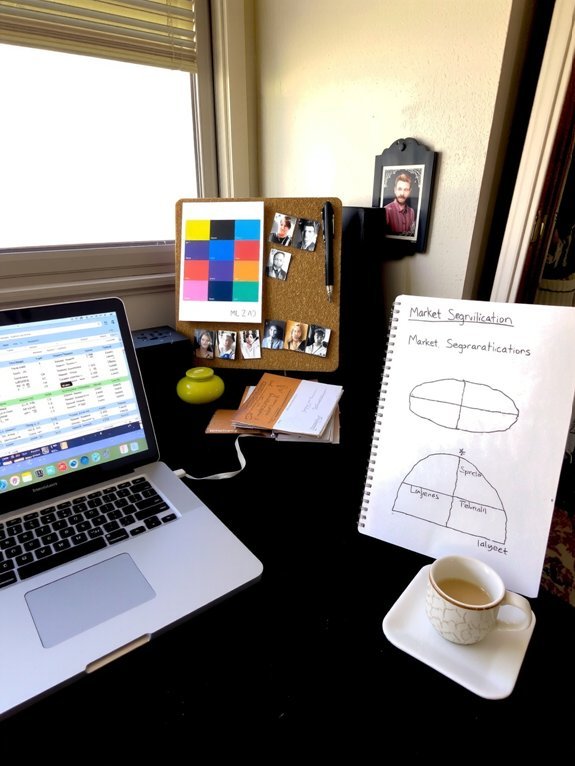
Who exactly are you selling to — the overwhelmed grad student burying syllabi under sticky notes, the hyper-organized entrepreneur color-coding their week, or the sleep-deprived parent who dreams of a five-minute morning routine? You start by mapping target demographics: age, job, habits, pain points, even what alarms they snooze. Go into forums, stalk hashtags, listen to language—smells like coffee, sounds like late-night scrolling. Then do competitor analysis: buy their planners, note gaps, steal good ideas (politely), and file what customers complain about. Sketch quick user stories, talk to three real people, tweak based on feedback. You’ll find a sweet spot where demand meets your voice. That’s how niche becomes profit, and stress becomes a sale.
Designing Attractive, Functional Planner Pages
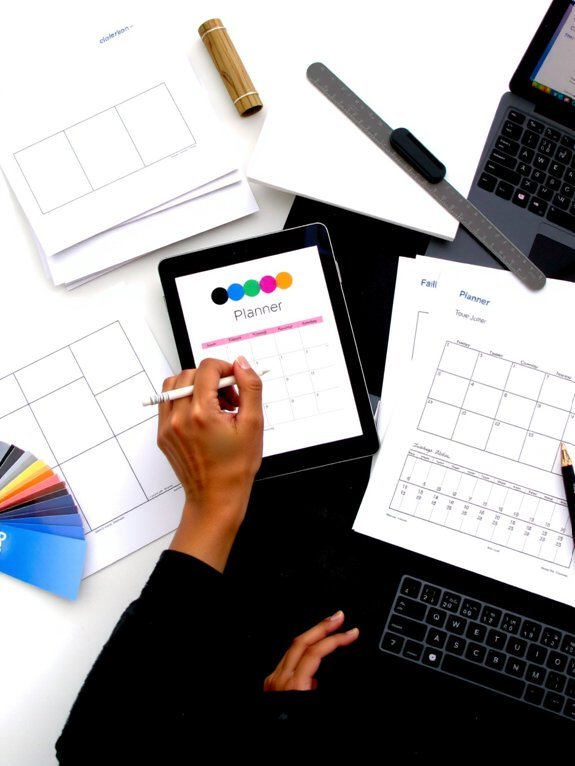
You’re about to make pages people actually want to open, so start with a clear visual hierarchy that guides eyes like a polite usher — bold headers, smaller subheads, and roomy margins that breathe. Use tidy layout grids to line everything up, snap elements into place, and keep things predictable so users don’t fumble; yes, even pretty chaos needs rules. Then add editable, interactive elements — checkboxes, fillable fields, drag-and-drop modules — so folks can customize, tap, and feel the planner respond, like a supportive gadget that knows them.
Clear Visual Hierarchy
Think of your planner like a stage set — I want the eye to land where the story starts, not get lost in a crowd of props. You guide readers with clear visual organization, bold headings, and a single focal point per spread. I pick a hierarchy: title, subhead, body, action button — then I amplify it with scale, contrast, and color, so things pop like stage lights. Keep design consistency, same typefaces, margins, and spacing; it soothes the brain, and buyers notice. Use tactile details — textured headers, soft shadows, a whisper of color — to make pages feel touchable on-screen. Be ruthless: remove chrome, highlight what matters, and trust white space to do the heavy lifting.
Functional Layout Grids
Anyone can slap boxes on a page, but a real grid sings. You’ll want grid organization that feels inevitable, like pieces clicking. I’ll show you how to balance margins, rhythm, and breathing room so taps and swipes feel natural. Start with thirds, try columns, then mash them with rows until something useful appears. Think tactile: the eye rests, your finger lands, satisfaction. For layout inspiration, keep a swipe file of magazine spreads, receipts, and sticky notes — yes, that chaos is gold. I joke, I cringe, I reuse other people’s good ideas without shame. Test in low light, on a tablet, while brewing coffee. Refine spacing, align headers, and let your grid guide users, not boss them around.
Editable Interactive Elements
If you want people tapping, typing, and actually using your planner, make the interactive bits irresistible and obvious—no mystery, no fiddling. You’ll want editable interactive elements that glow with purpose: fillable text boxes that snap to a grid, checkboxes that click with a satisfying tap, sliders that slide like butter, and dropdowns that don’t hide in corners. I talk to users, I test taps, I watch hesitation vanish. Use clear labels, big touch targets, and gentle contrasts so fingers find things fast; add subtle haptics or sound cues if the platform allows. These small delights boost user engagement, and they sell. Design for short bursts and long sessions, keep defaults sensible, and let people personalize every page—your planner becomes sticky, useful, and worth buying.
Choosing File Formats and Tools for Creation
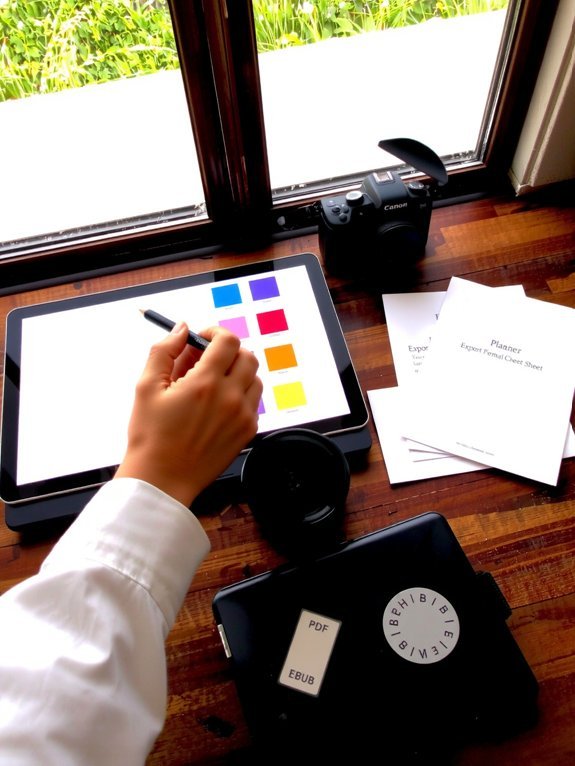
You’re about to pick the file formats and tools that’ll make your planner sing, not sputter—think PDFs for universality, PNGs for crisp stickers, and editable files like GoodNotes or Keynote for customization. I’ll walk you through the easy pros and cons of each, show the tools I actually use (spoiler: they won’t bankrupt you), and help you match format to customer needs so your product looks sharp on screens and tablets. Ready? Let’s sort the tech from the tangle and get your pages downloadable, tappable, and sale-ready.
Best File Formats
Three formats will make most of your digital-planner dreams actually sell: PDF, GoodNotes/Procreate-friendly images, and interactive EPUB/HTML for web-based planners—pick the right one and you’ve done half the work. I’ll be blunt: PDF advantages are real — universal, printable, and familiar to buyers, like a warm mug on a rainy day. For stylus users, PNG versatility wins: crisp pages, transparent layers, drag-and-drop stickers that snap into place, satisfying as a click. Interactive EPUB/HTML lets you add links, scripts, and slick navigation, like a tiny website under your buyer’s thumb. Match format to audience, test a sample page, and listen to feedback. You’ll sell more when you give people what they actually want.
Creation Tools Overview
We’ve already picked the file formats that’ll actually sell, now let’s talk about the tools you’ll use to build those files—the software and apps that turn ideas into clean, clickable pages. You’ll choose design software that feels like a trusted tool, not a puzzle. Use Adobe or Affinity for pixel-perfect control, Procreate for hand-drawn flair, and GoodNotes for quick notebook exports. Focus on user experience, tappable links, and neat layers. Test on a tablet, feel the taps, hear the little digital thud. Be picky, you’ll thank me.
| Tool | Strength | Feeling |
|---|---|---|
| Adobe | Precision | Powerful |
| GoodNotes | Speed | Satisfying |
| Procreate | Artistry | Joyous |
| Affinity | Value | Dependable |
Pricing, Packaging, and Licensing Strategies
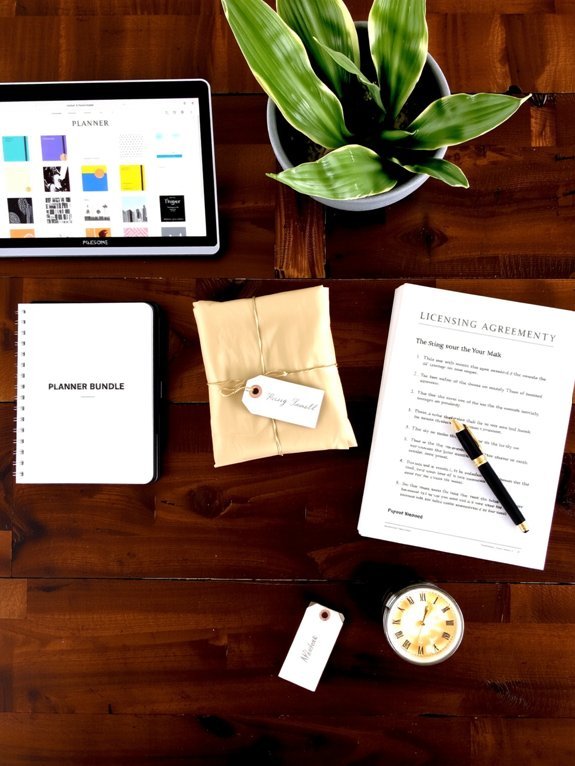
Let’s talk money, because pricing isn’t a math test — it’s a personality you bottle and sell. You decide whether to be the friendly neighbor or the slick boutique, and that tone shows in pricing tiers, package deals, and tiny free samples that get people hooked. I tell you, list a basic, pro, and deluxe, name them with charm, and watch choices feel like fun, not a quiz. Bundle every planner with stickers or templates, mix monthly and yearly, offer upgrades — customers love clear value. For licensing, state single-use, multi-use, and commercial rights plainly, no weasel words, a short one-paragraph license will do. Charge fair, protect your work, and sleep easier.
Platforms and Channels to Sell Your Planners
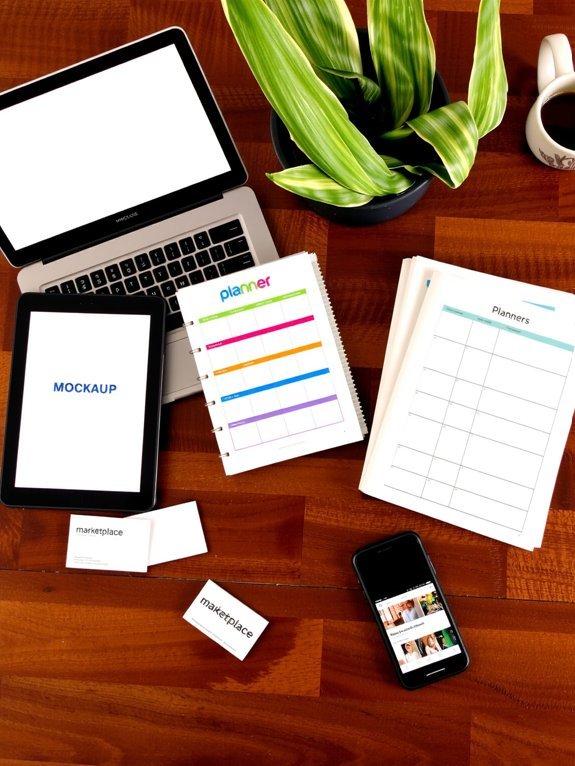
If you want people to actually find and buy your planners, you’ve got to meet them where they already hang out — not shout into the void and hope for thunder. I recommend starting with E commerce platforms like Etsy, Gumroad, or Shopify; they handle payments, delivery, and look trustworthy, which means less fretting for you. Then, sprinkle presence across Social media — Instagram reels, TikTok clips, and Pinterest pins that show pages flipping, stickers sticking, little satisfying taps. Sell on multiple channels, but keep files organized, ready-to-download, and nicely previewed, so buyers feel the texture before they click. Offer clear product images, short demo videos, and quick replies to questions. You’ll sound professional, sell more, and actually enjoy the hustle — promise.
Marketing Tactics to Drive Sales and Scale Your Business
Three things usually make a planner fly off a virtual shelf: irresistible previews, smart targeting, and repeatable funnels — and yes, you can build all three without turning into a marketing robot. I tell you this like a friend who’s spilled coffee on mockups: show a crisp walkthrough video, a zoomed-in page, and a smiling screenshot — make people hear the paper in their head. Use social media for snackable demos, reels that snap, and niche groups where your ideal buyer hangs out. Pair that with email marketing sequences that feel personal, not robotic — welcome, value, then the offer. Test pricing, tweak copy, automate funnels, and scale slowly. Celebrate small wins, tweak fast, rinse, repeat.
Conclusion
You’ve got the map. Picture a tidy desk, warm mug steam, your planner glowing on-screen — now sell that spark. Do the homework, craft pages people can’t resist tapping, pick usable files, price smart, bundle like a pro, and shout about it where your crowd hangs out. I’ll cheer you on (and clap when you make your first sale). It’s practical, playful work — and you’re ready to turn pixels into profit.